Thursday, July 5, 2012

Monday, April 2, 2012
Icon Rollover using jQuery in SharePoint 2010
1)Add a CQWP on the sharepoint page.
2)Open SPD2010
3)Edit it with the following code...
$(document).ready(function() {
$("img.rollover").hover(
function() { this.src = this.src.replace("_UP", "_OVER");});
$("img.rollover").mouseout(
function() { this.src = this.src.replace("_OVER", "_UP");});
});
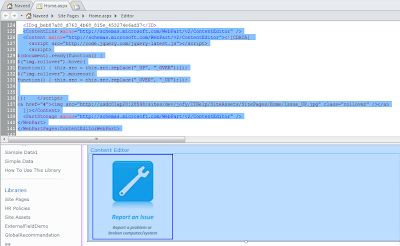
Save it and refresh the page on the browser.
UseFul link:
http://kaidez.com/tutorial-simple-effective-jquery-image-rollover/
2)Open SPD2010
3)Edit it with the following code...
$(document).ready(function() {
$("img.rollover").hover(
function() { this.src = this.src.replace("_UP", "_OVER");});
$("img.rollover").mouseout(
function() { this.src = this.src.replace("_OVER", "_UP");});
});

Save it and refresh the page on the browser.
UseFul link:
http://kaidez.com/tutorial-simple-effective-jquery-image-rollover/
Friday, March 23, 2012
How to retrieve user data from Active Directory in SharePoint 2010 using C#
Requirement:
In SharePoint logged in user can click on chat button to communicate with IT Help desk team.
In this requirement we need to pass users login name,IP Address, Country and City of the user to the Help desk team. The team using the Provide Support Chat tool.
In SharePoint logged in user can click on chat button to communicate with IT Help desk team.
In this requirement we need to pass users login name,IP Address, Country and City of the user to the Help desk team. The team using the Provide Support Chat tool.

Solution:
Have developed a web part to deploy in SharePoint 2010.

User name and IP Addresses are coming from the below statements in the user control.
lblUserName.Text= Request.ServerVariables["LOGON_USER"];
lblIP.Text = Request.ServerVariables["REMOTE_ADDR"];
The Country ,City and other properties coming from AD
using System.DirectoryServices;
findBase.Add("LDAP://XXX/OU=Users,OU=Bangalore-CRL,OU=Pacific Asia,DC=corp,DC=lairdtech,DC=com");
findBase.Add("LDAP://XXX/OU=Users,OU=Sharepoint Users,DC=corp,DC=lairdtech,DC=com");
(Collection of LDAPs)
foreach (string str in findBase)
{
DirectoryEntry myLdapConnection = createDirectoryEntry(str);
// create search object which operates on LDAP connection object
// and set search object to only find the user specified
DirectorySearcher search = new DirectorySearcher(myLdapConnection);
search.Filter = "(cn=" + userName + ")";
SearchResult result = search.FindOne();
if (result != null)
{
if (result.Properties["c"].Count > 0)
userDetails.Add(result.Properties["c"][0].ToString());
else
userDetails.Add("");
if (result.Properties["l"].Count > 0)
userDetails.Add(result.Properties["l"][0].ToString());
else
userDetails.Add("");
break;
}
// else Console.WriteLine("User not found!" +i.ToString());
}
return userDetails;
public DirectoryEntry createDirectoryEntry(string findBase)
{
// create and return new LDAP connection with desired settings
DirectoryEntry ldapConnection = new DirectoryEntry(findBase, "corp\\NA-Service", "0ZLXXXGKXXX");
ldapConnection.AuthenticationType = AuthenticationTypes.Secure;
return ldapConnection;
}
Next passing the user details to the chat tool

Once user clicks on the chat button then Help desk team receives the users details like the below screen shot

Finally have deployed the IT Help desk chat web part on the home page the sharepoint 2010.
Useful Links:
Thursday, March 8, 2012
Hide fields in the list form using jQuery
The rule would be as follow:
1. Show the row of “Others” only if [Issue Type] = “Others”
2. Otherwise, hide the whole row of “Others”.
Solution:
Add a CQWP on the list:
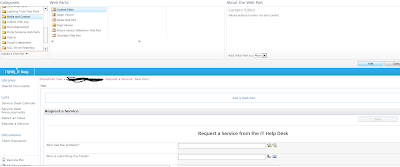
Open the SPD2010
Update the CQWP with the below statements
1. Show the row of “Others” only if [Issue Type] = “Others”
2. Otherwise, hide the whole row of “Others”.
Solution:
Add a CQWP on the list:

Open the SPD2010
Update the CQWP with the below statements

Ticket1 and Ticket2 are the classes of the controls

Save the updates in SPD2010 and then refresh the page on the browser.

Friday, January 20, 2012
Cascading dropdown in InfoPath2010


Useful link
https://www.nothingbutsharepoint.com/sites/eusp/Pages/Browser-Based-InfoPath-2010---Creating-Cascading-Dropdown-Fields-with-no-Code.aspx
Monday, October 10, 2011
How to configure PDF iFilter for SharePoint Server 2010 or Search Server 2010
For one of my requirement used the below url for configuring iFilter for SharePoint 2010.
Installation process
• Install iFilter
• Place Icon
• Modify registry
• Restart SP Search service
http://www.mossgurus.com/adnan/Lists/Posts/Post.aspx?ID=40
Installation process
• Install iFilter
• Place Icon
• Modify registry
• Restart SP Search service
http://www.mossgurus.com/adnan/Lists/Posts/Post.aspx?ID=40
Monday, May 30, 2011
Editing Page in SharePoint Designer 2010 with Advance Mode
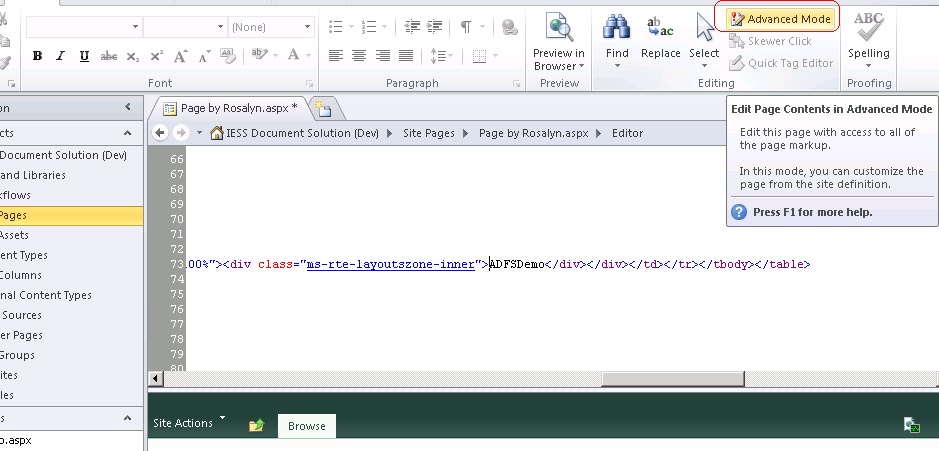
I have tried to edit a page and got a code that was marked in yellow. In addition, the Ribbon was missing some of the tabs. I was unable to edit the code on the page.

Solution:Click on “Advance Mode” button that is located on the Ribbon.
Once you have clicked it, you’ll see the other tabs and you will be able to edit the page.
Solution:Click on “Advance Mode” button that is located on the Ribbon.
Once you have clicked it, you’ll see the other tabs and you will be able to edit the page.
Subscribe to:
Posts (Atom)